
System settings and account settings
System settings
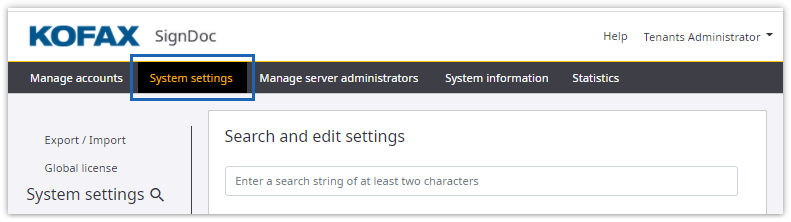
From the Administration Center starting page, click the System settings link in the navigation panel.
The
System settings menu displays
settings related to the system, documents and packages, security, mail,
plugins, signing, and the global license.
Search settings
When you click the System settings link in the navigation panel the Search and edit settings page is displayed where you can search for a specific setting by typing in a search term.
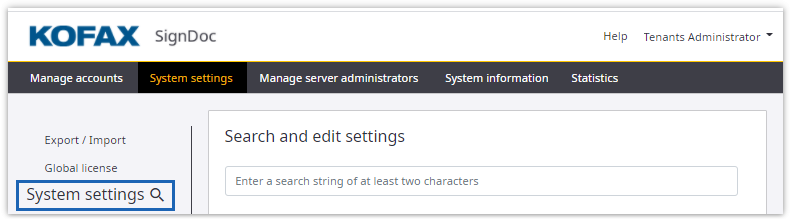
Alternatively you can also open this page by clicking the search icon
beside the
System settings label.
After typing in at least two characters, a case-insensitive search is
started and displays a result list of settings which id, title, or description
values match to the search string.
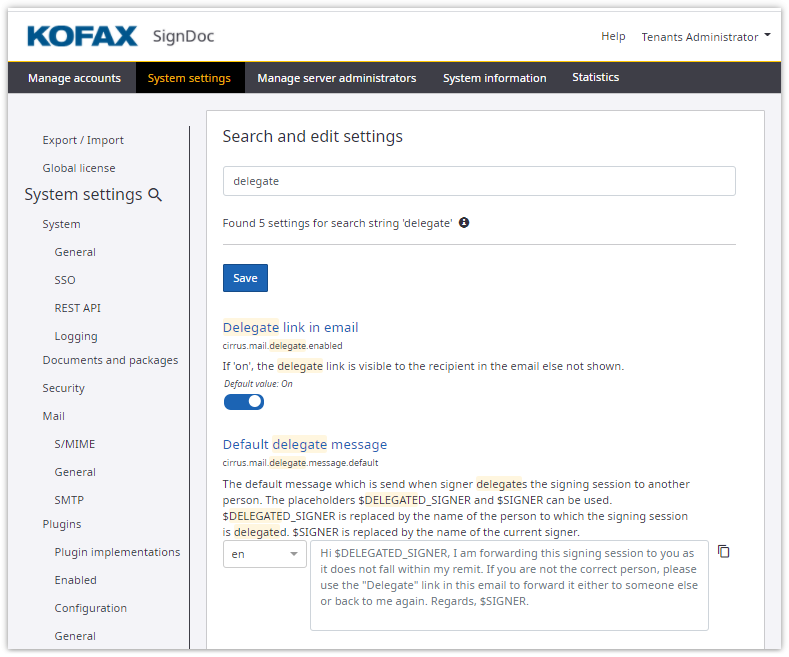
You can edit the settings directly in the search result list and click
Save. If you click the title
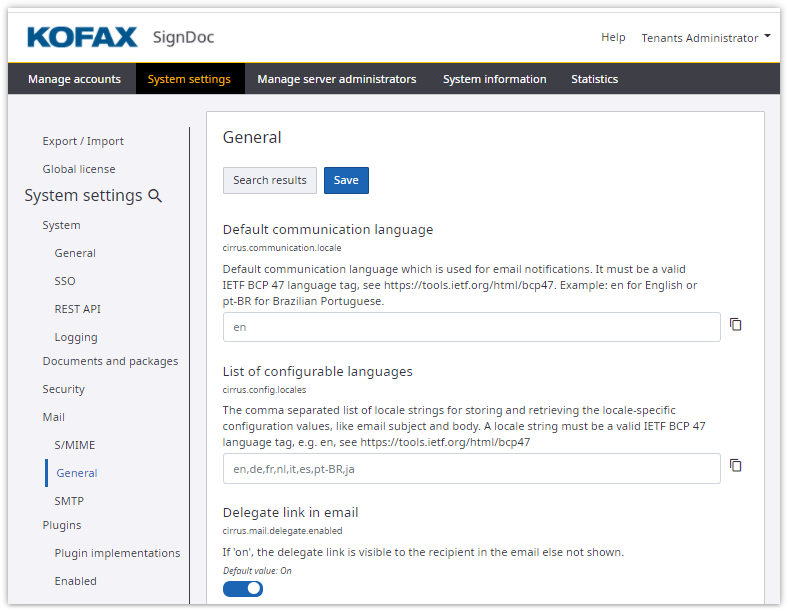
of a setting, the setting's category page opens where you can see the setting
in its normal context. When entering a setting's category in this way, an
additional
Search results button is displayed that takes you back to the
"Search and edit settings" page.
Account settings
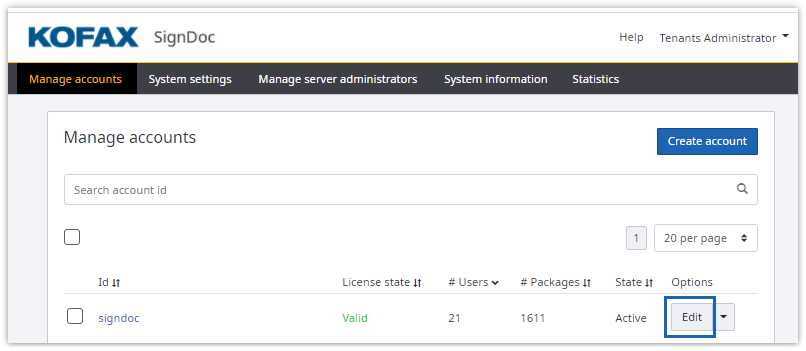
In the
Manage accounts section,
click
Edit for the preferred
account or an account name.
When the
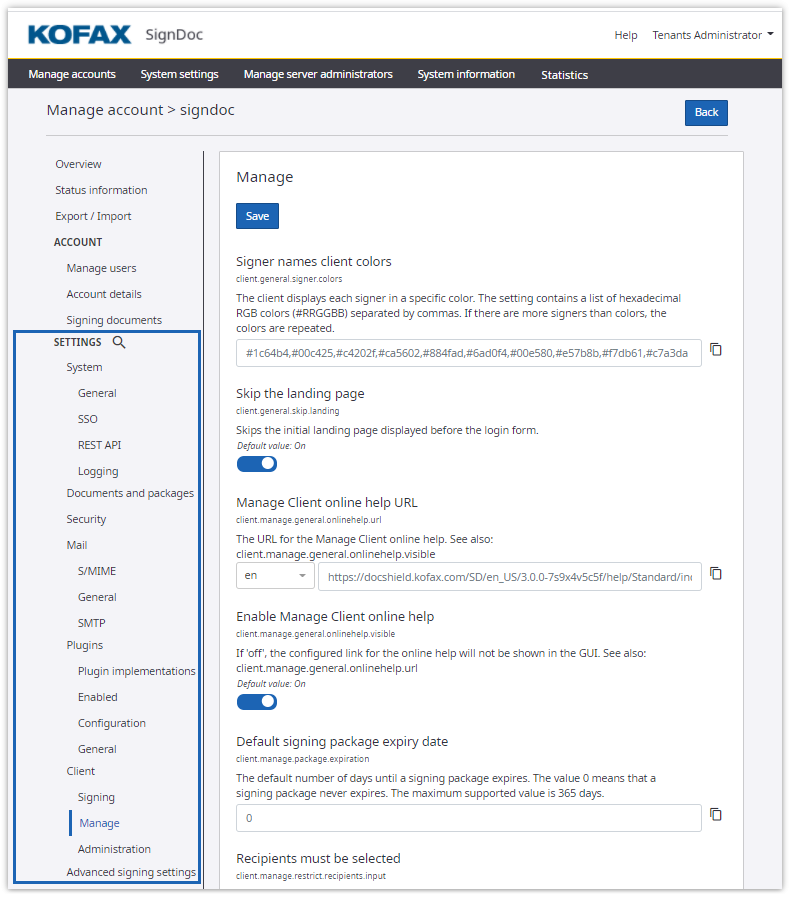
Manage account menu appears,
click one of the
Settings entries on the left
to edit the account settings.
Server administration settings and account settings have different values.
As a server administrator, you set the default values for account settings.