Custom styling in WebCapture
Use the following information to create custom styles for the web UI.
A Cascading Style Sheet (CSS) file for customizing the appearance of the WebCapture web client form is provided and can be used to override WebCapture styling, or to add new styling for newly defined Extended Field Properties. This file is named Custom.css and can be found under the AutoStore installation directory at: ASWCCapture\CSS\.
Styling Extended Field Properties
Extended Field Properties (XFP) are passed to the WebCapture web client by adding additional attributes, known as expando attributes, to the HTML for each form field. These expando attributes are formatted as follows:
data-property name = “value1 value2 value-n”.
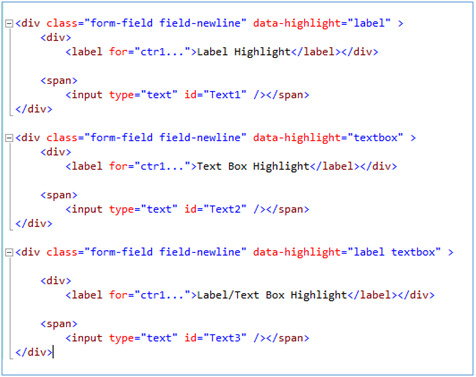
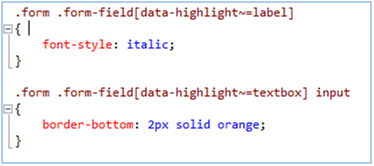
Expando attributes are assigned to the outer field container where they may be referenced and interpreted by client scripts or referenced through CSS; for example, the figure below illustrates how to highlight fields associated with the “highlight” XFP by italicizing the label and changing the color and size of the text box bottom border. The two CSS classes in the figure below utilize the tilde + equals sign which instructs the browser to match any part of the property value with the text following the sign.
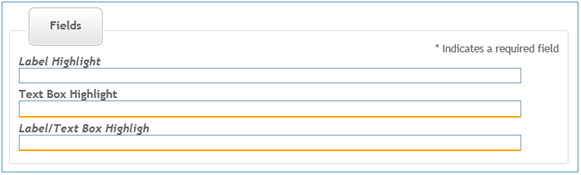
The figure below shows how the WebCapture web client form field can be styled using XFP. The “highlight” XFP has been assigned to each field; however, they each have their own combination of values assigned. The first field has a “label” value, which results in the field label being rendered with an italic font. The second field has the “textbox” value, which has resulted in the field text box being rendered with a thicker bottom border and a more noticeable color. The last field has been rendered with both styles since it has both “label” and “textbox” as its “highlight” value.